Animation Draw: Flip Maker
Fusion Flow TechArt & Design
4.599.00 Reviews
- Version
- 1.1.1
- Installs
- 500.00K
- Age Rating
- Everyone
Screenshots
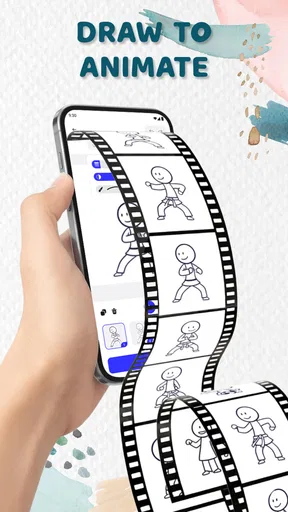
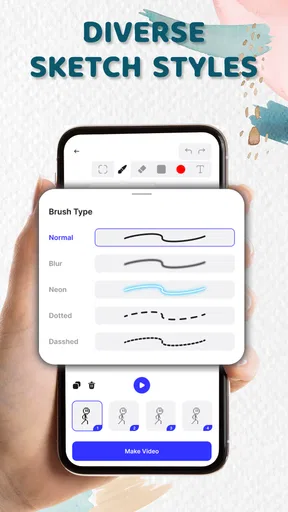
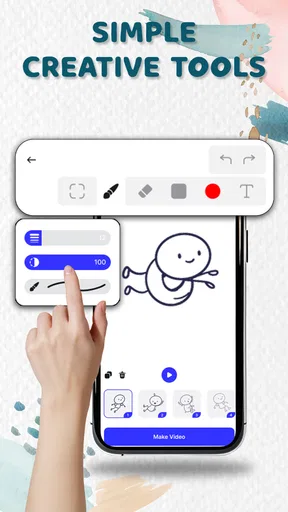
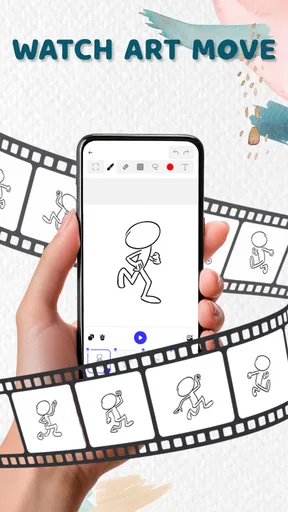
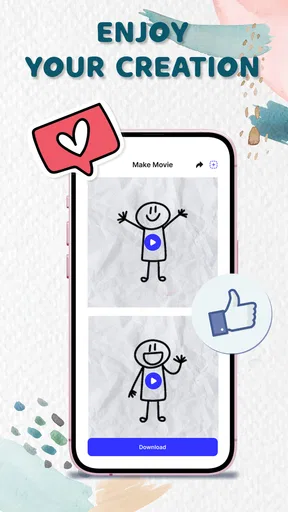
Our Review of Animation Draw: Flip Maker
 Analysis by Appyee
I approached Animation Draw: Flip Maker as a small creative studio rather than as a full animation suite. Its central idea is simple: I draw individual frames, move through them in sequence, and watch those drawings become a flipbook-style animation. That focused approach is the app’s biggest strength. It gives a beginner a direct way to understand movement without first learning a complicated timeline, layers system, or professional production workflow.
After spending time with it, my impression is that the app works best when I treat each frame as a quick visual decision. A ball does not need a perfect illustration to feel like it is bouncing; it needs a believable change in position, shape, and timing from one drawing to the next. This makes the app useful for practicing motion, sketching a short visual joke, planning a scene, or turning a few rough drawings into something I can share with friends.
It is a free Art & Design app from Fusion Flow Tech, aimed at Everyone. The current version is 1.1.1, and it runs on Android 7.0 or later. Its average rating is 4.5 from around 10K ratings, while the app has passed 500K installs. Those numbers suggest that its uncomplicated approach has found an audience, but they do not change my main conclusion: this is most appealing when I want a straightforward flipbook experience, not a replacement for advanced animation software.
Why the frame-by-frame idea matters
The most important capability here is the conversion of ordinary drawings into movement. That sounds modest, but it changes how I think about sketching. In a normal drawing app, I can make one polished image and stop there. In this app, every drawing can act as part of a sequence, so I start paying attention to what changes between moments.
That shift is especially helpful for beginners. Instead of facing a large professional interface, I can concentrate on a few practical questions: where is the subject now, where will it be next, and what small change makes the transition feel natural? A stick figure waving, a leaf falling, or a character turning its head becomes a manageable exercise because the action is divided into visible steps.
The flipbook format also encourages experimentation. I can make a deliberately rough sequence, play it back, notice the awkward frame, and redraw that moment. The result may not look like a finished cartoon, but the process teaches timing more clearly than drawing a single still image. The real value is not just producing a moving sketch; it is learning to see motion as a chain of small visual choices.
This focus separates Animation Draw from many general drawing apps. A standard sketching tool may offer more room for detailed illustration, while a video editor may provide stronger control over finished footage. Neither necessarily makes the first steps of frame-by-frame animation feel as approachable. Here, the act of creating a sequence is the main experience rather than an extra feature hidden inside a broader toolbox.
How I use a sequence without making it harder than necessary
I get better results when I begin with a very short action. My first instinct with animation is often to plan too much, but a small loop is easier to judge. I might draw a ball at rest, lift it slightly, place it at the highest point, and then bring it down again. Once the loop works, I can add more detail. Starting with a complicated character or a long scene usually creates more opportunities for inconsistent drawings.
A useful habit is to keep the subject simple during the first pass. I focus on the body position or main shape, then use later frames to refine the idea. If I try to perfect every drawing immediately, I lose the sense of movement and spend too much effort polishing images that may later need to change. The app’s appeal is strongest when I use it for quick visual thinking rather than treating every frame as a finished illustration.
I also recommend checking the sequence frequently instead of waiting until the end. A frame that looks fine by itself can feel too sudden when placed between two others. Playback exposes those jumps quickly. When a movement feels stiff, I usually add an in-between drawing or make the change between neighboring frames smaller. When it feels slow, I remove unnecessary repetition or simplify the action.
That workflow offers a practical answer to a common beginner question: do I need to know animation theory before using the app? No. I can learn by testing a motion, watching it, and adjusting the frames that feel wrong. Basic ideas such as anticipation and follow-through become easier to understand when I apply them to a tiny sequence. For example, a character can lean back before throwing an object, or a bouncing shape can squash slightly on impact. These choices make a rough animation feel more intentional without requiring advanced drawing skills.
A realistic everyday project
A good everyday use case is a short message for a friend. Instead of sending a static doodle, I can create a small loop of a cup filling, a face changing expression, or a handwritten greeting appearing one stage at a time. The project does not need elaborate artwork. A clear silhouette and a few well-chosen changes can communicate more personality than a detailed image that never moves.
I can imagine using it during a break, on a commute, or while waiting for an idea to develop. I sketch the main shape, add the next stage, play the sequence, and revise the frame that breaks the illusion. That makes the app feel more like a pocket sketchbook with motion than a formal production environment. The low-pressure nature is important: I can explore an idea without committing to a large project.
It is also useful for explaining a visual concept. If I want to show how a simple object opens, rotates, or changes position, a few frames may communicate the idea better than a paragraph. Students, hobby artists, and people planning a larger illustration can use this kind of rough animation as a visual note. It is not necessarily the final product; it can be a fast way to think through movement before investing more time elsewhere.
Where the simple workflow helps—and where it stops
The uncomplicated design lowers the entry barrier, but it also means I should set reasonable expectations. This is not the app I would choose for a long animated film, a polished commercial sequence, or a project that depends on extensive asset management. Professional animation work often needs sophisticated layer handling, precise timing controls, audio synchronization, export options, and detailed editing. A focused flipbook tool cannot replace that broader environment.
The same limitation can be helpful for a beginner. A large collection of controls can slow me down before I have even decided what I want to animate. Here, the narrower purpose keeps my attention on the drawings. The trade-off is that I may eventually outgrow it if my projects become more demanding. That is not a flaw in the core idea, but it matters when deciding whether to make it part of a larger workflow.
I would also avoid expecting automatic animation from one finished drawing. The central experience is based on creating a sequence of drawings, so the quality of the movement depends on the decisions I make from frame to frame. Someone looking for an instant effect, an automatic motion filter, or a one-tap conversion from a still image may prefer a different kind of creative app. Animation Draw rewards participation rather than removing the drawing work.
Another trade-off is the balance between speed and precision. Rough frames are fast and playful, but they can drift in size or position. When I redraw a character repeatedly, its proportions may change unless I deliberately keep an eye on its main landmarks. That can be charming for a sketchy style, but frustrating if I want a perfectly consistent figure. I find it helps to establish a simple reference shape before adding expressive details.
Tips that make short animations feel better
My first practical tip is to identify one anchor point in every frame. For a bouncing ball, it might be the center; for a standing character, it could be the feet; for a rotating object, it could be the point around which it turns. Keeping that anchor stable prevents accidental sliding and makes the movement easier to read.
Second, I try not to distribute every change evenly. Natural movement often has a pause, a quick action, or a moment of impact. A character can hold a pose briefly before moving, while a falling object can travel quickly and then stop sharply. Even with simple drawings, varying the visual spacing between poses gives the sequence more personality than repeating nearly identical frames.
Third, I separate the planning pass from the cleanup pass. In the first pass, I use loose shapes and concentrate on direction. In the second, I correct the frames that matter most, such as the starting pose, the strongest action, and the ending pose. This is more efficient than polishing every frame equally. It also protects the spontaneous quality that makes a flipbook sketch enjoyable.
A fourth useful approach is to design loops with the ending in mind from the beginning. If the final pose can lead naturally back to the opening pose, the animation feels complete when repeated. A blinking eye, a waving hand, or a bouncing object is easier to loop than a complicated story with a fixed conclusion. This makes the app particularly suitable for small repeating animations and visual experiments.
Who will get the most from it
I think the strongest audience is beginners who want to understand frame-by-frame animation without committing to a professional tool. Young artists can use it for playful experiments, while adults who already sketch can use it to add movement to ideas that normally remain static. The Everyone content rating also makes it approachable for a broad audience, although the most satisfying results still depend on patience and a willingness to redraw.
It can also serve as a useful bridge between drawing and animation. Someone who feels comfortable making still images may find movement intimidating. A short flipbook removes some of that intimidation because each frame can remain simple. Conversely, someone interested in animation but not confident in drawing can use basic shapes to practice timing before worrying about artistic detail.
I would recommend skipping it if my main goal were advanced production control, extensive editing, or highly polished illustration. In those situations, a more specialized animation package or a full drawing application would be a better investment of time. I would also look elsewhere if I mainly wanted filters that animate an existing picture automatically. This app makes more sense when I want to be involved in building the motion myself.
For parents, teachers, or casual creators, the free price makes experimentation easier because there is no purchase decision standing between an idea and a first test. Still, free does not mean effortless. The app can help someone begin, but it cannot supply the visual planning, consistency, or patience needed for a convincing sequence. That is actually part of its educational value: the creator can see exactly how each drawing affects the result.
How it compares with familiar alternatives
Compared with a general drawing app, Animation Draw puts movement at the center. A general-purpose canvas may be better for a detailed poster, painting, or single illustration, but it can make animation feel secondary. Here, I am less likely to forget the sequence because the act of drawing is tied to progression from one frame to another.
Compared with a video editor, it feels more immediate for hand-drawn motion. Video editors are usually better when I already have clips, sound, transitions, or recorded material. They are not always the most comfortable place to create a rough character animation from scratch. Animation Draw is the better fit for a visual idea that begins as a pencil-like sketch rather than as footage.
Compared with advanced animation software, it is easier to approach but less suitable for demanding projects. A professional tool may offer deeper control and a more elaborate workflow, while this app gives me a smaller space in which to practice the fundamentals. I would treat it as a starting point, a quick sketching companion, or a lightweight option for short ideas—not as a complete replacement for every tool in the category.
My final recommendation
Animation Draw: Flip Maker succeeds because it stays close to one clear creative activity: drawing a sequence and seeing it move. In my experience, that clarity makes it easier to begin, easier to experiment, and easier to understand why a motion works or fails. The app is especially enjoyable when I keep projects short, use simple shapes, and revise the frames that interrupt the rhythm.
Its limitations are equally clear. It is not the right choice for someone seeking a full professional animation pipeline, automatic effects, or extensive control over a finished production. But for learning, quick visual notes, playful loops, and personal sketches, the focused format is an advantage rather than a compromise.
With a 4.5 average and more than 500K installs, it has already attracted a sizeable audience, and I can see why. I would recommend it to a friend who wants to try animation without being buried under advanced controls. If the goal is to discover how a drawing becomes movement, this free app offers a friendly place to start.
Verdict
Strengths of Animation Draw: Flip Maker
- Simple frame-by-frame tools are suitable for beginners.
- Onion-skin overlays help align movements between frames.
- Supports creative hand-drawn animation without advanced equipment.
- Useful for planning short clips, GIFs, and simple storyboards.
- A straightforward interface makes basic editing quick to learn.
Limitations of Animation Draw: Flip Maker
- Detailed animations can become time-consuming on a small phone screen.
- Advanced effects and professional timeline controls may be limited.
- Large projects may use considerable storage space.
- Precise drawing can be difficult without a stylus.
- Export options may not satisfy users needing high-end video formats.
Other Releases by Fusion Flow Tech
View All
Themebox - App icons, Widgets
Personalization4.7

Silly Fun Smile Live Wallpaper
Personalization4.8

Finger Spinner: Glow Art Draw
Art & Design4.7
Similar Picks in This Category
View All
Canva: AI Photo & Video Editor
Canva4.8

PENUP – Drawing-sharing SNS
Samsung Electronics Co., Ltd.4.5

Crafto
Kutumb App4.6

Sketchbook
Sketchbook4.1

ibis Paint X
ibis inc.4.5

Adobe Express: AI Photo, Video
Adobe4.6
Frequently Asked Questions
What is Animation Draw: Flip Maker, and how does it work?
Animation Draw: Flip Maker is a mobile animation app designed for creating short hand-drawn animations frame by frame. You can sketch an image, add another frame, and gradually change the drawing to produce movement. The flipbook-style preview helps you check timing and smoothness while working, making the app suitable for beginners who want to experiment with 2D animation without complicated professional software.
Is Animation Draw: Flip Maker suitable for beginners?
Yes, the app is generally aimed at beginners, casual creators, students, and anyone interested in learning the basics of frame-by-frame animation. Its drawing-based workflow is easy to understand, although creating smooth movement still requires patience and practice. New users should begin with simple actions, such as a bouncing ball or blinking character, before attempting longer or more detailed animations.
What kind of animations can be created with the app?
Animation Draw: Flip Maker can be used to create simple hand-drawn cartoons, character movements, short stories, visual effects, doodle animations, and flipbook-style clips. The final quality depends largely on your drawing ability, the number of frames, and how carefully each image is adjusted. It is better suited to short creative projects than to complex productions with advanced rigging or 3D elements.
Does Animation Draw: Flip Maker require an internet connection?
The basic drawing and animation process may work without a constant internet connection, which is convenient when you want to sketch while traveling or away from Wi-Fi. However, certain features may depend on the version installed, including advertisements, cloud-related services, sharing options, or additional content. It is best to check the app’s current store listing and permissions before downloading if offline use is important to you.
Is Animation Draw: Flip Maker free to download, and are there in-app purchases?
The availability and pricing structure can vary between Android and iOS, as well as between different app versions. Some features may be offered for free while advertisements, extra tools, exports, or other conveniences could require payment. Before installing, review the official store page for the latest information about in-app purchases, subscriptions, supported devices, and whether the free version includes all the tools you need.
